This is the Self-Learning Module (SLM) for MAPEH – Arts 6, Quarter 1, Module 10: Utilizes Art Skills (Software and Hardware) in Cartoon Character Making. It is for Grade 6 learners studying at home or in class, and for the teachers and parents who guide them. By the end, learners can tell hardware tools from software, name common cartoon-making programs and websites, and make their own cartoon character on a computer or phone.
The module was written by Roselyn T. Navida and published by the Department of Education, Region VI – Western Visayas (First Edition, 2020).
What learners will learn
The module targets this competency: the learner utilizes art skills (hardware and software) in cartoon character making (A6PR-IVg). After the module, learners are expected to:
- Become familiar with hardware tools and computer software.
- Learn how to handle and follow steps in using hardware tools and computer software applications.
- Make an artwork using any computer software.
Lessons in this module
- Lesson 1 – Art Skills vs Hardware Tools and Computer Software: Explains what art skills are and how hardware differs from software, with examples of both.
- Lesson 2 – Common Cartoon Character Making Software Applications: Introduces 13 programs and websites for making cartoons, then asks learners to turn their own photo into a cartoon.
- Lesson 3 – Getting Started with Software Applications: Walks learners step by step through making an avatar with the Avatoon app, then asks them to create their own cartoon artwork.
Key ideas: art skills, hardware, and software
Art skills. Artistic ability is the skill and talent to create works of art such as painting, drawing, sculpting, and musical composition. Creativity is the skill to use imagination to create and solve problems. Art skills can be used by drawing by hand or digitally, with a computer.
Hardware. These are the physical parts of a computer you can touch: the cabinet, central processing unit, monitor, keyboard, data storage, graphics card, sound card, speakers, scanner, printer, mouse, and motherboard. The module also counts pencils, crayons, canvas, brushes, pens, and paper as hardware tools used in art.
Software. Software is a set of instructions that lets the user work with a computer and its hardware, or perform tasks. Without software, most computers would be useless. Software that helps with drawing, designing, and editing pictures includes MS Paint, GIMP, Adobe Photoshop, Inkscape, PowerPoint, Publisher, and photo editors.
Cartoon-making programs and apps
Lesson 2 lists 13 common cartoon-making programs and websites:
| Program or website | What it does |
|---|---|
| Inkscape | Free program similar to Adobe Illustrator; makes logos and cartoons and converts bitmap images to vector images |
| Pencil | Free, easy 2D animation and drawing program with layers, frame drawing, and sound |
| Tupi | Free 2D animation program for Linux; can “tween” objects so not every frame is drawn by hand |
| Scratch | Educational program from MIT for making animations and games with drag-and-drop code |
| Synfig Studio | Advanced 2D animation program with a steep learning curve |
| WeeWorld | Free website for making cartoons to share online |
| Manga Avatar Face Maker | Lets you pick eyes, hair, and lips to make a cartoon of yourself |
| Custom Anime | Builds a full-body character, including clothes and accessories |
| Cartoon Pho.to | Turns any photo, including still life, into a cartoon |
| Wooz World | Safe online virtual world for kids; no download needed |
| Build Your Wild Self | Combines wild animal parts with a human figure |
| OSOQ | Simple, quick photo avatar editor |
| Cartoonize | Uploads a photo and applies cartoon effects |
Making an avatar with Avatoon
Lesson 3 shows how to use Avatoon, an app from the Play Store or App Store:
- Download and open the app.
- Tap Avatar Gallery, then the + sign.
- Choose Male or Female.
- Choose Facial Recognition or Manual Creation.
- Pick the face shape, hairstyle, eyes, eyebrows, nose, and lips.
- Add accessories such as eyeglasses or a cap.
- Tap save, then choose an outfit, including clothes and shoes.
- Tap save again, then share or save the avatar to your gallery. You can also edit it or add a pose.
How to use this module
Each lesson follows the usual SLM parts: What I Know (pretest), What’s In, What’s New, What is It, What’s More, What I Have Learned, What I Can Do, Assessment, and Additional Activities. Write all answers on a separate sheet of paper, not on the module.
- Learners: Start with the pretest, then work through each part in order. In Lesson 3, create a male avatar in Avatoon and send it to your art teacher through Messenger, or print it and hand in the hard copy if you have a printer at home.
- Parents: Help your child get a phone or computer with the apps or websites needed, and check answers honestly with the answer key.
- Teachers: The Notes to the Teacher ask you to provide example pictures, monitor each learner’s progress, and interact with the learner at least once a week. The answer keys cover Lessons 1 to 3; the artwork tasks are graded with the rubrics included in the module, which rate areas such as craftsmanship, completion, creativity, and use of tools.
Frequently asked questions
What grade and quarter is this module for?
It is for Grade 6 MAPEH – Arts, Quarter 1, Module 10.
What is the difference between hardware and software in this module?
Hardware is the physical parts of a computer, such as the mouse, keyboard, and monitor, plus art tools like pencils and brushes. Software is a set of instructions that lets you use the computer, such as MS Paint, GIMP, or Photoshop.
Does the module have an answer key?
Yes. It has answer keys for Lessons 1, 2, and 3. Artwork tasks are scored with the rubrics printed in the module.
What app is used to make an avatar in Lesson 3?
Lesson 3 uses Avatoon, which can be downloaded from the Play Store or App Store. Learners then send their avatar to their art teacher through Messenger or submit a printed copy.
What cartoon-making programs does the module list?
Lesson 2 lists 13, including Inkscape, Pencil, Tupi, Scratch, Synfig Studio, WeeWorld, Wooz World, Cartoon Pho.to, OSOQ, and Cartoonize.
Full text of the module
The text below is a transcription of the PDF above, as printed.
MAPEH – Arts Quarter 1 – Module 10: Utilizes Art Skills (Software and Hardware) in Cartoon Character Making
6
CO_Q1_Arts6_Module10
MAPEH – Arts Alternative Delivery Mode Quarter 1 – Module 10: Utilizes Art Skills (Software and Hardware) in Cartoon Character Making First Edition, 2020
Republic Act 8293, section 176 states that: No copyright shall subsist in any work of the Government of the Philippines. However, prior approval of the government agency or office wherein the work is created shall be necessary for exploitation of such work for profit. Such agency or office may, among other things, impose as a condition the payment of royalties.
Borrowed materials (i.e., songs, stories, poems, pictures, photos, brand names, trademarks, etc.) included in this module are owned by their respective copyright holders. Every effort has been exerted to locate and seek permission to use these materials from their respective copyright owners. The publisher and authors do not represent nor claim ownership over them.
Published by the Department of Education Secretary: Leonor Magtolis Briones Undersecretary: Diosdado M. San Antonio
Development Team of the Module
Author: Roselyn T. Navida Editor: Gerry D. Almanon Reviewers: Rebecca Y. Ibarreta, Mahnnie Q. Tolentino, Hajji S. Tropa Illustrator: Roselyn T. Navida Layout Artist: Roselyn T. Navida Management Team: Ramir B. Uytico, Pedro T. Escobarte Miguel Mac D. Aposin, Jerson B. Labos Elena P. Gonzaga, Donald T. Genine, Celestino S. Dalumpines IV Dobie Parohinog, Mahnnie Q. Tolentino Rebecca Y. Ibarreta, Hajji S. Tropa Ana Maria D. Arboleda, Annalyn N. Bebita Jeannen C. Borreros
Printed in the Philippines by _____________________
Department of Education – Region VI – Western Visayas Office Address: Duran St., Iloilo City Telefax: (033) 336-2816, (033) 509-7653 E-mail Address: region6@deped.gov.ph
6
MAPEH – Arts Quarter 1 – Module 10: Utilizes Art Skills (Software and Hardware) in Cartoon Character Making
Introductory Message
This Self-Learning Module (SLM) is prepared so that you, our dear learners, can continue your studies and learn while at home. Activities, questions, directions, exercises, and discussions are carefully stated for you to understand each lesson.
Each SLM is composed of different parts. Each part shall guide you step-by-step as you discover and understand the lesson prepared for you.
Pre-tests are provided to measure your prior knowledge on lessons in each SLM. This will tell you if you need to proceed on completing this module or if you need to ask your facilitator or your teacher’s assistance for better understanding of the lesson. At the end of each module, you need to answer the post-test to self-check your learning. Answer keys are provided for each activity and test. We trust that you will be honest in using these.
In addition to the material in the main text, Notes to the Teacher are also provided to our facilitators and parents for strategies and reminders on how they can best help you on your home-based learning.
Please use this module with care. Do not put unnecessary marks on any part of this SLM. Use a separate sheet of paper in answering the exercises and tests. And read the instructions carefully before performing each task.
If you have any questions in using this SLM or any difficulty in answering the tasks in this module, do not hesitate to consult your teacher or facilitator.
Thank you.
What I Need to Know
This module was designed and written with you in mind. It is here to help you master how to utilize art skills in using new technologies (hardware and software) in cartoon character making. The scope of this module permits it to be used in many different learning situations. The language used recognizes the diverse vocabulary level of pupils. The lessons are arranged to follow the standard sequence of the course. But the order in which you read them can be changed to correspond with the module you are now using.
The module aims that a learner utilizes Art Skills (hardware and software) in cartoon character making (A6PR-IVg) and is divided into three lessons, namely:
- Lesson 1 – Art Skills vs Hardware Tools and Computer Software
- Lesson 2 – Common Cartoon Character Making Software Applications
- Lesson 3 – Getting Started with Software Applications
After going through this module, you are expected to:
- familiarize or acquaint yourself in hardware tools and computer software;
- learn how to manipulate and follow steps in using hardware tools and computer software applications; and
- make an artwork using any computer software.
What I Know
Identify if the following are Hardware Tools by writing HT and SA for Software Applications. Use a separate sheet of paper for your answers.
- [illustration: paint palette with brush, colorful paints]
- [illustration: GIMP logo, a cartoon creature with a paintbrush]
- [illustration: black ink splash logo with mountain shape]
- [illustration: green pencil with red eraser]
- [photo: black inkjet printer]
- [illustration: Adobe Photoshop logo, “Ps” on dark blue background]
- [photo: blue COBY computer mouse]
- [photo: computer monitor showing a screen]
- [photo: flatbed scanner, open lid]
- [illustration: camera with scissors icon on blue background]
Lesson 1: Art Skills vs Computer Software and Hardware Tools
In this lesson, you can learn many things about Art Skills, Software and hardware. These things had been discussed in the past lessons, but we need to deepen our understanding about this.
What’s In
Arrange the following steps in making a cartoon character. Write the corresponding 1 – 5 on the box before the steps.
☐ Add a head ☐ Practice drawing a box, a sphere, and a cylinder ☐ Master the flour neck ☐ Stretch them, bend, and twist them ☐ Add limbs
Notes to the Teacher
The teacher will provide pictures as examples so that the learner can easily understand what is being discussed in this module. He/she should also monitor closely the progress of the child. It is strongly advised that there will be a once a week interaction between the teacher and the learner.
What’s New
Look at the two pictures.
[illustration: drawing of a magnifying glass, paint palette, and brushes in a pot] Illustration by Gerry Almanon Unpublished, reproduced with permission
[illustration: green cartoon turtle with brown shell] Illustration from Green-Free Vector graphic on Pixabay
1
2
✓ What can you say about these pictures? ✓ Can you identify what picture was done by the use of hardware tools and what is by digital? ✓ Are you interested to make one like these? ✓ Ask yourself if you have the skills.
What is It
Art Skills
Artistic ability includes skills and talent to create fine works of art: painting, drawing, sculpting, musical composition, etc. Creativity ability is the skill and talent to use our imagination to create and solve. A better artist is creative. Art skills can be applied thru drawing by hand and digital or using computer (hardware or software).
What is a Hardware?
Computer hardware includes the physical, tangible parts or components of a computer, such as the cabinet, central processing unit, monitor, keyboard, computer data storage, graphics card, sound card, speakers, scanners, printers, mouse, and motherboard.
Pencils, Crayons, canvas, brushes, pens and papers are also hardware tools used in art.
What is a Software?
Software is a collection of instructions that enable the user to interact with a computer, it’s hardware, or perform tasks. Without software, most computers would be useless.
[transcriber’s note: the printed folios on these pages read 5 to 12; the page markers below follow the requested numbering 9 to 16]
Computer software that are of help in drawing, designing, and editing of pictures and illustrations are the following:
- ✓ MS Paint
- ✓ GIMP
- ✓ Adobe Photoshop
- ✓ Inkscape
- ✓ Powerpoint
- ✓ Publisher
- ✓ Photo editor
- ✓ Others
What’s More
Identify the following by writing HARDWARE or SOFTWARE on a separate sheet of paper.
- [photo: computer mouse]
- [logo]
- [logo]
- [photo: desktop computer system unit]
- [photo: computer keyboard]
Computer software that are of help… (continued from the previous page)
What I Have Learned
- Software is a collection of instructions that enable the user to interact with a computer, it’s hardware, or perform tasks. Without software, most computers would be useless.
- Hardware includes the physical, tangible parts or components of a computer, such as the cabinet, central processing unit, monitor, keyboard, computer data storage, graphics card, sound card, speakers, scanners, printers, mouse and motherboard.
- Other hardware tools are pencils, crayons, brushes, papers, canvas, boards and others.
- Artistic ability includes skills and talent to create fine works of art: painting, drawing, sculpting, musical composition, and acting.
What I Can Do
Try to answer the following questions.
- What is an Art Skill?
- What is a Software? Give examples.
- What is a Hardware? Give some examples.
Assessment
Read the sentences comprehensively. Write YES if the statement is right and NO if not. Use another sheet of paper for your answer.
- A mouse of a computer is an example of Hardware.
- Painting belongs to Software.
- Sculpture or sculpting is an Art skill.
- Composing music is a software.
- Photoshop editor is a software.
Additional Activities
Discover software that could be of help for making art works.
What I Know
Match the icon in column A with the correct application name in column B. Write the correct letter of your answer on a separate sheet of paper.
| Column A | Column B |
|---|---|
| 1. [illustration: black ink-blot icon] | A. Synfig Studio |
| 2. [illustration: pencil icon] | B. Inkscape |
| 3. [illustration: SCRATCH logo] | C. Pencil |
| 4. [illustration: blue faceted icon] | D. Tupi |
| 5. [illustration: WeeWorld logo] | E. Cartoonize |
| 6. [illustration: Wooz World logo] | F. Scratch |
| 7. [illustration: Cartoonize.net logo] | G. Wooz World |
| 8. [illustration: blue arrow icon with FREE ribbon] | H. WeeWorld |
Lesson 2: Common Cartoon Character Making Software Applications
In this lesson, you can learn many things about common cartoon character making software applications. The last lesson introduces you to the definition of art skill, computer software and hardware tools. Here, you will focus your attention on what software applications were suitable in making cartoon characters. This will help you appreciate more and enhance your hidden talent.
What’s In
Read the following sentences carefully. Write check ( ✓ ) if the statement is correct and an X if it is wrong. Write your answer in a separate sheet of paper.
- A mouse of a computer is an example of software.
- Painting belongs to art skill.
- Sculpture or sculpting is a software.
- Composing music is an art skill.
- Photoshop editor is a software.
Notes to the Teacher
The teacher will provide pictures as examples so that the learner can easily understand what is being discussed in this module. He/she should also monitor closely the progress of the child. It is strongly advised that there will be a once a week interaction between the teacher and the learner.
What’s New
Try to analyze the two given pictures. Where is an original photo? Where is a cartoonize photo?
A
[photo: yellow flower among green leaves]
B
[illustration: flat-colored yellow flower with five petals on a green background]
- ✓ How can you differentiate a cartoonize picture from an original one?
What is It
Top Thirteen (13) Cartoon Making Software Programs
Cartoons (animated or not) aroused the interest of young and old today. Children love to sketch or draw their favorite cartoon character or even buying them in stuffed toys form.
Here are some common Cartoon Making Software Programs that can develop your skills in creating your own cartoon character.
1. Inkscape
This is a free software program that has imaging editing and creating abilities similar to Adobe Illustrator. It is an open software that will run on a variety of programs, such as windows, Mac and Linux. Here are some features that Inkscape provides:
- Create logos and other forms of artwork from scratch.
- It can draw cartoons and artwork for animation use.
- It will convert bitmap images into vector images.
- Can be used to design websites and interface mockups in a quick and timely manner.
2. Pencil
If you are looking for a free and easy to use cartoon making software program, Pencil might be a good program to start off with. It is an open source 2D cartoon animation and drawing program. It will run on Windows, Mac and Linux and provide you with the following tools:
- Import background images from a file and draw backgrounds for a picture.
- Use multiple layers to create cartoons and other animated objects.
- Draw each of its frames manually or apply copy and paste to create images.
- It will export your cartoon animation in FLV format or in individual images for each frame.
- You can easily add sound to your cartoon animation.
3. Tupi
A free 2D cartoon and animation drawing program that is limited to Linux processing systems. It is a lot like pencil and can do everything that pencil can do as well as:
- Use a variety of common video formats to export animations.
- It can “tween” objects from one another. This allows users to not have to manually draw each frame.
- Use and work with vector images.
4. Scratch
This is an educational cartoon making software produced by MIT, and can be used to create fun and basic animations and cartoons. Scratch is open source and will run on windows, Mac and Linux. It will help you do the following things:
- Create cartoons and animations by drawing sprites and triggers that can make the sprites move and change.
- Develop interactive games by using dropping and dragging commands to build a code.
- You can share your Scratch creations online with the other Scratch users.
5. SynfigStudio
A 2D animation and drawing program for more advanced cartoon and animation making. It is an open source platform and is compatible with Windows, Mac and Linux. If you are just starting out with cartoon making, you might want to stick to some of the simpler programs above. This particular cartoon making software has a steep learning curve and will enable you to work with vector images.
6. WeeWorld
A free cartoon making website that will allow you t create a cartoon that you can share online. It gives you the chance to explore and expand your knowledge with thoughtful game play applications from charitable campaigns to drug awareness programs.
7. Manga Avatar Face Maker
A popular website that allows you to create a cartoon character of yourself using an Avatar face Maker. This program allows you to select your specific eyes, hair, lips and mouth to create the ideal cartoon character for you.
8. Custom Anime
This is a great place to create a very specific cartoon character for yourself that focuses not only on your face but your entire body as well. You will be in charge of the dress of your character and any accessories you might find handy.
9. Cartoon Pho.to.
With this, you can take any picture that you want and cartoon it. You can cartoon your face into different emotions, and also cartoon still life photos.
10. Wooz World
A great and safe online place for kids to dive into a virtual world. There are no downloads required and you can play entirely online. It will enable you to cartoon yourself and play in an alternate cartoon world.
11. Build Your Wild Self
This is a fun and interactive website where you can create a cartoon character of yourself using different wild and imaginative body parts. For instance, you can add the wings of a dragon onto your body for a cool and fun effect. Basically, you are combining body parts from various wild animals with that of a human for fun and imaginative take on the cartooning process.
12. OSOQ
This is a very easy and fun place to create a cartoon character online that requires almost a little to no effort. It is a basic and fun photo avatar editor.
13. Cartoonize
Another website that will allow you to cartoon your face, Cartoonize provides a simple solution to creating a cartoon of your photo. The site will easily allow you to upload a photo directly from your computer and alter it and apply effects as you wish.
What’s More
Using any of the given software application and website, try to make a cartoon out of your own photo. The rubric below will determine your rating.
| Category | Very Good Artist | Developing Artist | Beginning Artist |
|---|---|---|---|
| 8 – 10 | 5 -7 | 0 – 4 | |
| Material Application & Techniques | Demonstrates qualities & characteristics of various media techniques & processes. | Demonstrates some qualities & characteristics of various media techniques & processes. | Lacks demonstration of qualities & characteristics of various media techniques & processes. |
| 8 – 10 | 5 -7 | 0 – 4 | |
| Understanding of Content | Insight and depth of content understanding are evident. | Some depth of content understanding is evident. | Lacks content understanding and is clearly a work in progress. |
| 8 – 10 | 5 -7 | 0 – 4 | |
| Completion | Most of the steps are completed to the best of student ability. | Some of the steps are completed but needs finishing touches. | Artwork appears to be a work in progress. |
| 8 – 10 | 5 -7 | 0 – 4 | |
| Tool/ Material Responsibility | Demonstrates respectful use of tools and materials. | Demonstrates some respect for art tools and materials. | Demonstrates little or no respect for the art tools and materials. |
| 8 – 10 | 5 -7 | 0 – 4 | |
| Craftsmanship | Artwork reflects deliberate control having good craftsmanship. | Artwork reflects adequate control and having some craftsmanship. | Artwork appears to be a work in progress with little or no control of craftsmanship. |
| 8 – 10 | 5 -7 | 0 – 4 | |
| Creative process | Expresses original idea and insightful perspectives with an appropriate amount of details. | Expresses original ideas but has few details. | Lacks original idea and has few details. |
A Handy Rubric for Art Teachers – Educational Technology https://i.pinimg.com/originals/e4/78/19/e47819bef0f9692588ca6546f5612867.jpg

[transcriber’s note: these pages print the numbers 13 to 20; the page markers below follow the requested numbering, 17 to 24]
What is It
Creating an Avatar/Cartoon using Avatoon By: Roselyn T. Navida
Nowadays, there were many software and applications budding in the net that helps young artist to create a cartoon character. Avatoon is one application that can be downloaded thru Play Store or App Store.
How to use Avatoon?
- Download the app from Play/app Store in your Android Phone or PC.
- Open the application.
[illustration: two smiling cartoon avatars beside photos of two young women]
- Click Avatar Gallery.
[illustration: app screen showing a cartoon character, with a circled icon at the top left]
- Tap the + sign from the avatar gallery.
[illustration: avatar gallery screen with a circled + sign]
- Choose a gender that you want to create by tapping Male or female.
[illustration: app screen reading “Please choose your gender” with a blue Male option and a pink Female option]
Note: All illustrations on this page were created by Roselyn T. Navida
- Choose on the way How you are going to create your character – Facial Recognition or Manual Creation.
[illustration: app screen reading “How would you like to create your avatar?” with Facial Recognition and Manual Creation options]
- Choose the shape of the face from the choices given.
[illustration: app screen showing a cartoon character with face-shape choices]
- Choose a hairstyle.
[illustration: app screen showing a cartoon character with hairstyle choices]
- Choose the right kind of eyes.
[illustration: app screen showing a cartoon character with eye choices]
- Select an eyebrow.
[illustration: app screen showing a cartoon character with eyebrow choices]
- Select the right nose.
[illustration: app screen showing a cartoon character with nose choices]
Note: All illustrations on this page were created by Roselyn T. Navida
- Choose a beautiful lips.
[illustration: app screen showing a cartoon character with lip choices]
- Add an accessory like eyeglasses or cap.
[illustration: app screen showing a cartoon character with accessory choices]
- Click save. Choose an outfit for your creation. This includes clothes, shoes, etc.
[illustration: app screen showing a cartoon character with outfit choices]
- Click save. Then, you can share or just save to gallery your creation.
[illustration: share screen showing the finished avatar with sharing options]
- You can edit or add a pose for your avatar.
[illustration: share screen with the pose options circled]
Note: All illustrations on this page were created by Roselyn T. Navida
What’s More
Now that you have somehow had an idea of creating an avatar from avatoon app, create a male avatar and send/share it to your art teacher thru messenger after you are done. If you have a printer at home, you can print it and pass the hard copy to your teacher.
What I Have Learned
Avatoon is an awesome way to show the world how unique you really are. Tons of customation options really let your personality shine through.
It is easy to follow the steps and you will enjoy creating your own character.
What I Can Do
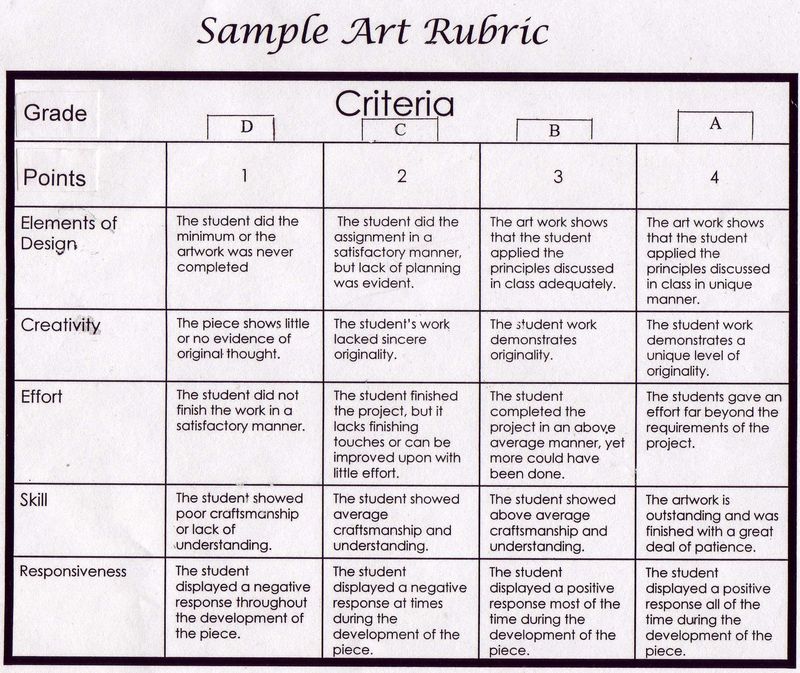
With your prior knowledge on the use of software, create a simple artwork, preferably a cartoon character. Apply all that you have learned from this lesson. Your work will be rated by this rubric below.
| Points | 1 | 2 | 3 | 4 |
|---|---|---|---|---|
| Elements of Design | The student did the minimum or the artwork was never completed | The student did the assignment in a satisfactory manner, but lack of planning was evident. | The artwork shows that the student applied the principles discussed in class adequately. | The artwork shows that the student applied the principles discussed in class in unique manner. |
| Creativity | The piece shows little or no evidence of original thought. | The student’s work lacked sincere originality. | The student work demonstrates originality. | The student work demonstrates a unique level of originality. |
| Effort | The student did not finish the work in a satisfactory manner. | The student finished the project, but it lacks finishing touches or can be improved upon with little effort. | The student completed the project in an above average manner, yet more could have been done. | The students gave an effort far beyond the requirements of the project. |
[transcriber’s note: the table below continues from the previous page, and its header row is not on this page]
| Skill | The student showed poor craftsmanship or lack of understanding. | The student showed average craftsmanship and understanding. | The student showed above average craftsmanship and understanding. The artwork is outstanding and was finished with a great deal of patience. |
| Responsiveness | The student displayed a negative response throughout the development of the piece. | The student displayed a negative response at times during the development of the piece. | The student displayed a positive response most of the time during the development of the piece. The student displayed a positive response all of the time during the development of the piece. |
Houston Academy-Art/Assessment/Pinterest/. https://www.pinterest.ph/pin/171699804516114541/
Assessment
With the ample knowledge that you have gained from our lessons/tutorials, show now your skills by creating your cartoon designing any of the cartoon character software presented. Your work will be rated accordingly with a rubric below.
| Category | Very Good Artist | Developing Artist | Beginning Artist |
|---|---|---|---|
| 8 – 10 | 5 -7 | 0 – 4 | |
| Material Application & Techniques | Demonstrates qualities & characteristics of various media techniques & processes. | Demonstrates some qualities & characteristics of various media techniques & processes. | Lacks demonstration of qualities & characteristics of various media techniques & processes. |
| 8 – 10 | 5 -7 | 0 – 4 | |
| Understanding of Content | Insight and depth of content understanding are evident. | Some depth of content understanding is evident. | Lacks content understanding and is clearly a work in progress. |
| 8 – 10 | 5 -7 | 0 – 4 | |
| Completion | Most of the steps are completed to the best of student ability. | Some of the steps are completed but needs finishing touches. | Artwork appears to be a work in progress. |
| 8 – 10 | 5 -7 | 0 – 4 | |
| Tool/ Material Responsibility | Demonstrates respectful use of tools and materials. | Demonstrates some respect for art tools and materials. | Demonstrates little or no respect for the art tools and materials. |
[transcriber’s note: table continued from the previous page]
| Category | Very Good Artist | Developing Artist | Beginning Artist |
|---|---|---|---|
| 8 – 10 | 5 -7 | 0 – 4 | |
| Craftsmanship | Artwork reflects deliberate control having good craftsmanship. | Artwork reflects adequate control and having some craftsmanship. | Artwork appears to be a work in progress with little or no control of craftsmanship. |
| 8 – 10 | 5 -7 | 0 – 4 | |
| Creative process | Expresses original idea and insightful perspectives with an appropriate amount of details. | Expresses original ideas but has few details. | Lacks original idea and has few details. |
A Handy Rubric for Art Teachers – Educational Technology. https://i.pinimg.com/originals/e4/78/19/e47819bef0f9692588ca6546f5612867.jpg
Additional Activities
Surf the net, open the free websites that will enhance your skills in cartoon character making.
Answer Key: Lesson 1
[transcriber’s note: this page is printed upside down; the three columns are transcribed in their logical order]
What I Know
- SA
- SA
- SA
- HT
- HT
- SA
- HT
- HT
- HT
- SA
What’s In
- 5
- 1
- 3
- 2
- 4
What’s New
Answers vary
What I Can Do
✓ Art Skill is a talent to create an art.
✓ Hardware is physical, tangible components of a computer.
✓ Software is a collection of instructions that enable the user to interact with a computer, it’s hardware, or perform tasks.
What’s More
- Hardware
- Software
- Software
- Hardware
- Hardware
Assessment
- YES
- NO
- YES
- NO
- YES
Answer Key: Lesson 2
[transcriber’s note: this page is printed upside down; the columns are transcribed in their logical order]
What I Know
- B
- C
- F
- A
- H
- G
- E
- D
What’s In
- x
- ✓
- x
- ✓
- ✓
What’s More
c/o Rubric
What I Can Do
c/o Rubric
Assessment
- TRUE
- FALSE
- TRUE
- TRUE
- TRUE
Answer Key: Lesson 3
[transcriber’s note: this page is printed upside down; the columns are transcribed in their logical order]
What I Know
- 6
- 3
- 5
- 7
- 1
- 4
[transcriber’s note: the printed list begins with 2 and runs 2, 6, 3, 5, 7, 1, 4 in reading order; the numbers are the answers and are listed here in that order]
What’s In
- Inkscape
- Pencil
- Scratch
- Tupi
- Synfig Studio
- WeeWorld
- Manga Avatar
- Face Maker Cartoonize [transcriber’s note: the printed name is split across two lines beside items 7 and 8, and the line break is unclear]
- Custom Anime
- OSOQ
- Cartoon Pho.to.
- Wooz World
- Build Your Wild Self [transcriber’s note: “Self” is printed on a separate line below “Build Your Wild” and is read here as part of the same name]
What’s New
Answers may vary
What’s More
c/o rubric
Assessment
c/o rubric
References
Retrieved from:
http://www.pixabay.com. Popular images-logos
http://2.bp.blogspot.com/-D3spQgmNNfU/Ve5IerBAk4I/AAAAAAAAAA4/o9u6EWhFd6k/s1600/ArtRubric.jpg
http://www.cartoonmotivators.com/blog/why-cartoons-are-such-effective-communicators/
https://i.pinimg.com/originals/e5/43/03/e54303493a543006112f1a96b911a736.png

D2022F478AE513959324E1B7A27CB8802999ACA6&form=IQFRBA&first=1&cw=1129&ch=423
Turtle Brown Green-Free Vector graphic on Pixabay
For inquiries or feedback, please write or call:
Department of Education – Bureau of Learning Resources (DepEd-BLR)
Ground Floor, Bonifacio Bldg., DepEd Complex Meralco Avenue, Pasig City, Philippines 1600
Telefax: (632) 8634-1072; 8634-1054; 8631-4985
Email Address: blr.lrqad@deped.gov.ph * blr.lrpd@deped.gov.ph
Leave a Reply